Last updated:
Disclosure: As an Amazon Associate we earn from qualifying purchases. This does not change what we recommend. See our affiliate disclaimer.
HomeKit air purifiers work with Apple Home so you can control them from an iPhone, iPad or Mac, with Siri and with automations. For people who live in the Apple ecosystem, that can be a convenient way to include a purifier in routines, but compatibility claims vary and the details matter.
This guide explains what to check before buying a purifier for Apple Home, how setup and hubs work, what automations are useful and why CADR, filters and noise should still come first. Choices come from our affiliate table; confirm Apple Home support on each listing, since features change between models and software versions. Our guidance is based on general information and is not based on our own lab testing.
HomeKit is worth it if
- You use Apple Home daily
- You want automations and Siri control
- You have a home hub for remote access
Skip it if
- You do not use Apple devices
- You prefer physical controls
- You do not need automations
Key Takeaways
- HomeKit or Matter support lets you control a purifier from Apple Home, but cleaning still depends on CADR and filters.
- Remote access and many automations generally need a home hub.
- Confirm the exact compatibility wording on the listing.
- Check that the unit works fully from physical controls if the network fails.
- Review the app permissions and privacy policy of any manufacturer app.
- Start with simple automations and add complexity only if you use it.
- Avoid ozone and ionizer modes, which the EPA advises against.
How to Compare Apple Home Purifiers Fairly
Start with the same checklist you would use for any purifier: CADR for your room, True HEPA, noise at low and medium speeds, filter price and availability. Then add compatibility checks: is Apple Home or Matter support listed on the product page, which controls and sensors are exposed, and does the maker say whether a hub is needed for remote access. Look at reviews from Apple Home users, since they will mention setup problems, response time and lost connections. A model that is slightly less powerful but reliably works with your setup may be the better pick.
Finally, weigh the premium. If the HomeKit version costs much more than the same purifier without it, consider whether you would use the automations. A smart plug may add basic scheduling for less, though it will not read sensors or change speeds.
Living With a Connected Purifier Long Term
Expect occasional hiccups: router restarts, firmware updates and software changes can briefly break connections. Keep a note of the setup code, document your scenes and keep the manual. Check the filter on schedule even if the app tells you it is fine, since the app often estimates life by running time rather than loading. Revisit the automations every few months and remove what you no longer use. A simple, reliable routine is better than a clever one that fails.
Top Picks: Air Purifiers
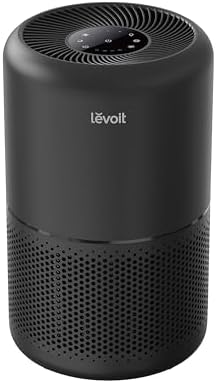
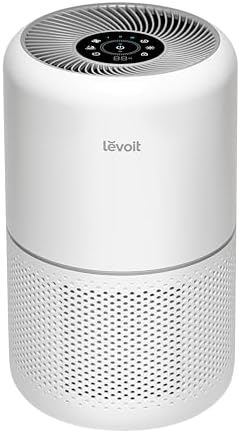
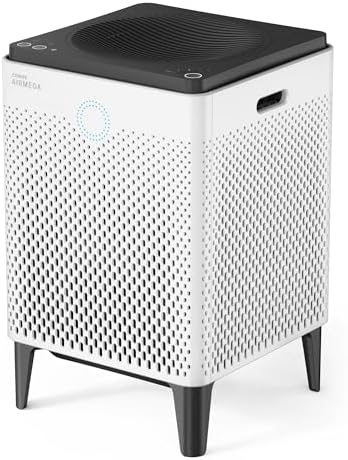
These options come from our affiliate table. Check the listing for the current CADR, filter type, and Apple Home or Matter support.



Useful Automations
You can set a scene that turns the purifier on when you leave or off when you arrive, or switch speed at certain times. Some purifiers report air quality, which can trigger a higher speed. Start with simple routines and avoid complicated chains that break when one device is offline.
Setup Tips
Place the purifier within range of your Wi-Fi, set up the Home app first and then add the purifier. Keep the setup code and update firmware when offered. If adding the device fails, restart the purifier and the router and try again.
Offline Behavior
Make sure the purifier works fully from its physical controls if the network goes down. Smart features are a convenience, not the core function.
Privacy and Security
HomeKit emphasizes local control and encryption for supported accessories, but manufacturers’ own apps may collect additional data. Read the permissions and privacy policy, and use the Apple Home app where possible.
Do Not Skip the Basics
A purifier that connects to Apple Home but has a low CADR, loud fan or costly filters is not a good buy. Size by CADR for your room, choose True HEPA and check noise and filter costs.
Longevity
Check how long the maker supports the model and its firmware. Standards such as Matter may extend compatibility, but support can change.
What HomeKit Support Means
A purifier with HomeKit support can be added to the Apple Home app, usually by scanning a code on the unit or in the manual. Once added, you can control power, speed or mode and sometimes see sensor readings. Some purifiers support Matter, a newer standard that also works with Apple Home, and compatibility details differ between models.
Always check the listing for the exact wording, because some products work through a manufacturer app and only partially through Apple Home.
Hubs and Remote Access
Controlling devices away from home generally requires a home hub, such as an Apple TV or HomePod, set up as a home hub. Without a hub, you may only be able to control the purifier on your home network.
| Need | What you generally need |
|---|---|
| Control at home | Apple device and compatible purifier |
| Control away from home | A home hub and an internet connection |
| Automations | Apple Home app and a hub for some triggers |
| Voice control | Siri on a compatible device |
A Worked Example: Morning and Night Routines
In the Apple Home app, create a scene called Bedtime that sets the bedroom purifier to a low speed and turns the display off, and a scene called Morning that raises the speed for half an hour while you get ready. Trigger Bedtime from a time of day or from a Siri phrase, and Morning from an alarm or a motion sensor. If your purifier reports air quality, add an automation that raises the speed when readings climb, with a lower limit so it does not run on high continuously. Review the routines after a week and trim what you do not use.
| Scene | Trigger | Action |
|---|---|---|
| Bedtime | Time or Siri | Low speed, display off |
| Morning | Alarm or motion sensor | Medium for 30 minutes |
| Leaving home | Phone leaves home | Low speed or off |
| Cooking | Manual or Siri | High for 20 minutes |
Matter and the Future of Compatibility
Matter is an industry standard designed to let smart home devices work across platforms. A Matter-compatible purifier may work with Apple Home, and other systems. Feature support varies: some purifiers expose only on and off and speed, while others expose modes and sensors. Check what the listing says about supported controls rather than assuming that Matter means every feature.
Home Hubs: What They Do
A home hub is a device on your network, such as an Apple TV or HomePod, that stays at home and handles remote access and automations. If you want to control the purifier away from home or run automations that trigger when you are away, set up a hub. If you only control the purifier from inside your home, a hub may not be needed.
Common Setup Problems and Fixes
If the Home app cannot find the purifier, check that your phone is on the same Wi-Fi network and that Bluetooth is on. Restart the purifier and the router. Move the router closer or add a mesh node if the signal is weak. If a purifier shows as no response in the app, check power and Wi-Fi first, and then restart the hub. Keep the setup code for re-adding the device.
Siri and Voice Control
Voice control can be handy for changing speed or turning the unit off without getting up. Keep phrases simple and give the purifier a clear name in the Home app, such as Bedroom Purifier. If you share your home with others, check that everyone can use the controls and that voice commands do not wake sleepers.
Privacy Considerations
HomeKit is designed to keep much of the processing within your home and uses encryption for communication. Manufacturers’ apps may collect more data than Apple Home, so use the app only for what you need, and review what it requests. Remove devices from your home before you sell them.
How to Choose
- Confirm Apple Home or Matter support on the listing
- Check CADR, filters and noise first
- Plan for a home hub if you want remote control
- Confirm physical controls work offline
- Review privacy settings
Do
- Match the unit’s rated coverage to your room first
- Run it consistently, not only when the air feels bad
- Leave space around the unit for airflow
- Replace filters on the maker’s schedule
Don’t
- Do not buy on looks or price alone
- Do not block the intake or exhaust
- Do not skip filter changes
- Do not expect a purifier to fix every source of pollution
Honest Limits
- This guide uses manufacturer information and public guidance from the EPA and AHAM, not our own lab tests.
- Features and room ratings change between model years, so confirm on the listing before you buy.
- A purifier is not a medical device and does not replace medical advice or treatment.
Who Should Skip This
Skip HomeKit support if you do not use Apple Home or will not use the automations.
Skip ionizer and ozone modes; the EPA advises against ozone-generating devices.
When to See a Professional
If you have asthma or allergies, do not rely on app readings to manage symptoms. Follow your doctor’s plan.
If the unit overheats or smells of burning, unplug it and contact the maker.
Frequently Asked Questions
What is a HomeKit air purifier?
A purifier that can be added to Apple Home so you can control it with the Home app, Siri and automations.
Do I need a home hub?
For remote access and some automations, yes. For control at home, often not.
What is Matter?
A cross-platform smart home standard. Matter purifiers may work with Apple Home, with varying feature support.
Does HomeKit make the purifier clean better?
No. Cleaning depends on CADR, filters and placement.
Does it work without Wi-Fi?
Physical controls should still work, but check before buying.
Can Siri control the purifier?
Usually, for power and speed. Check supported commands on the listing.
Are HomeKit devices private?
HomeKit uses encryption and local processing where possible, but manufacturer apps may collect data.
What if the purifier shows no response?
Check power and Wi-Fi, restart the purifier and the hub, and then try again.
Can I use the manufacturer app too?
Often yes. Review its permissions and privacy policy.
Are ionizer modes safe?
Some produce ozone, which the EPA advises against.
Bottom Line
A HomeKit air purifier is worth considering if you use Apple Home daily, but connectivity should come after CADR, filters and noise.
Confirm compatibility details and plan a home hub if you want remote control.
Related reading: wifi,fan,lw
Sources: EPA, Guide to Air Cleaners in the Home; AHAM Verifide.