Last updated:
Disclosure: As an Amazon Associate we earn from qualifying purchases. This does not change what we recommend. See our affiliate disclaimer.
Smart air purifiers rely on Wi-Fi, a phone app and cloud services, so problems can come from your router, phone settings, the app, the unit or the manufacturer’s servers. Common issues include the wrong Wi-Fi band, weak signal, expired permissions, outdated app or firmware, pairing errors and account problems. Start by checking that the unit is on and within range, restart the unit and router, update the app and firmware and re-pair if needed. If problems persist, check the manufacturer’s status page and contact support.
We have not tested these products ourselves, so follow your manual. Nothing here is medical advice.
Check first
- Wi-Fi band and signal
- App and firmware updates
- Phone permissions and account
Then try
- Restart unit, router and phone
- Re-pair the device
- Contact support
Key Takeaways
- Use the correct Wi-Fi band
- Update the app and firmware
- Restart devices and re-pair
- Use manual controls meanwhile
A Step-by-Step Reconnection Routine
Make sure the purifier is powered on and within range of your router. On your phone, connect to a 2.4 GHz network if the manual says so. Open the app and check for updates. Restart the unit, router and phone. In the app, remove the device and reset the unit’s Wi-Fi following the manual, which often involves holding a button until a light blinks. Add the device again and enter the Wi-Fi password carefully. Allow permissions when asked. If setup fails, move closer to the router, disable VPN and try again. Check for firmware updates after connecting. If it still fails, contact support with your router model and app version.
Weak Signal and Interference
Walls, appliances and distance weaken Wi-Fi. Move the unit closer or add a range extender. Avoid placing it near microwaves or other interference sources.
Router and Security Settings
Hidden networks, MAC filtering and strict security can block devices. Adjust settings temporarily and re-enable security after setup.
Firmware Updates Safely
Keep the unit powered during updates and follow instructions. Do not unplug mid-update.
Privacy and Security
Use strong passwords, update firmware and review permissions. Disconnect devices you no longer use.
When to Use Manual Controls
Physical buttons keep the unit working even if the app fails. Check that the unit remembers settings after power loss.
Choosing a Reliable Smart Model
Look for clear support, regular updates and good reviews on app stability.
Smart Home Integrations and Voice Assistants
Many purifiers connect to voice assistants and smart home hubs. If integrations stop working, check that your accounts are linked, that the unit is online and that the skill or integration is enabled. Remove and re-link the device if needed. Be careful about permissions and privacy, and avoid sharing more data than necessary. Keep your home network secure with strong passwords and updated routers. If you use automation, check that rules do not conflict. Test one rule at a time. If the integration is unreliable, use the app or physical controls and contact support about known issues. Keep notes on firmware and app versions when problems occur.
Moving Houses and Changing Routers
If you change your router or Wi-Fi name, the unit may lose connection. Reset the unit’s Wi-Fi and set it up again with the new network details.
Battery and Power Concerns for Remotes
Replace remote batteries and check that the unit is receiving power. Some units need to be plugged in for smart features.
Data and Privacy Settings
Review what data the app collects and adjust settings. Delete old devices and accounts you no longer use.
Quick Checklist for Smart Control Problems
Confirm power and range, use the right Wi-Fi band, update the app and firmware, check permissions, restart the unit, router and phone, remove and re-add the device, check the manufacturer’s status page and use manual controls meanwhile. Record the app and firmware versions and contact support if the problem continues. A methodical routine saves time and often restores control without replacing the unit.
Choosing Units With Dependable Controls
Look for units with simple physical controls, stable apps and responsive support. Smart features are useful, but basic reliability matters more.
Where App Problems Usually Live
Most app-control problems are network or account issues, not purifier faults. The unit may have dropped off Wi-Fi, be connected to a different network than the phone, be on a 5 GHz network when it needs 2.4 GHz, have a router that blocks device-to-device traffic, or be running old firmware. The app may be outdated, logged into a different account, or lacking permissions on the phone. Work through those before assuming the purifier is broken.
A purifier that still works from its panel while the app fails is almost always a connectivity issue.
A Reconnection Routine
- Update the app and restart the phone
- Confirm the phone is on the same 2.4 GHz network the purifier uses
- Power-cycle the purifier and the router
- Remove the purifier from the app and add it again, following the pairing steps
- Check router settings for client isolation or device limits
- Update the purifier’s firmware when the app offers it
Re-pairing fixes a large share of stubborn cases.
Schedules, Automations, and Confusing Behaviour
Speed changes, shutdowns, or lights you did not expect are often schedules or smart-home routines. Review schedules in the app and automations in any platform the unit is linked to. A unit that seems possessed is usually obeying an old routine.
Living Without the App
The app controls convenience features, not filtration. If it cannot be made to work, use the panel and the remote; the purifier cleans the air exactly the same. For units whose panel is minimal and the app is essential, contact the manufacturer; a factory reset and fresh setup is usually the recommended step.
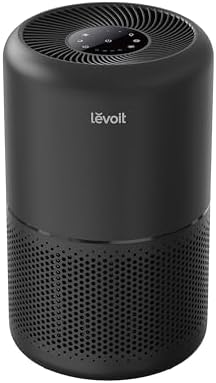
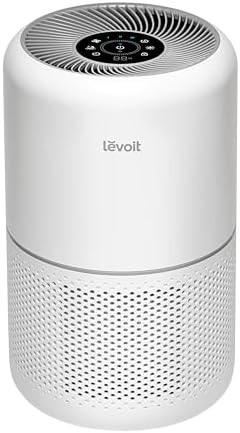
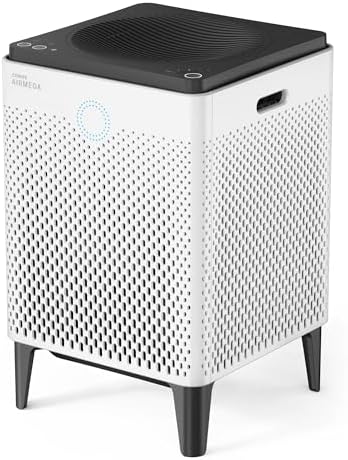
Air Purifiers With Reliable Manual Controls
If troubleshooting does not solve the problem, you may prefer to replace the unit. These picks come from the Hostinger affiliate plugin. Specs change by model year, so confirm filter type, CADR, noise and replacement filter costs on the product page.



Wi-Fi Band and Signal
Many smart units use 2.4 GHz Wi-Fi only. Make sure your phone is on 2.4 GHz during setup and the unit is within range of the router.
App and Firmware Updates
Update the app and the unit’s firmware. Outdated versions can cause connection issues.
Permissions and Accounts
Allow required permissions such as location or Bluetooth for setup. Check that you are logged in and the account is valid.
Restart and Re-Pair
Restart the unit, router and phone. If needed, remove the device from the app and set it up again following the manual.
Server and Service Issues
Sometimes the manufacturer’s servers are down. Check the status page or support channels.
Router Settings
Guest networks, security settings or band steering can block devices. Check router settings or temporarily disable features during setup.
Privacy and Data
Review app permissions and privacy settings. Share only what is needed.
Multiple Users and Homes
Check sharing settings and account permissions.
Voice Assistants and Integrations
Check integration settings and re-link accounts if needed.
Using Manual Mode
Use the unit’s physical controls while troubleshooting.
How to Choose
- Physical controls that work without Wi-Fi
- Reliable app
- Good support
- Clear firmware updates
Do
- Match the unit’s rated coverage to your room first
- Run it consistently, not only when the air feels bad
- Leave space around the unit for airflow
- Replace filters on the maker’s schedule
Don’t
- Do not buy on looks or price alone
- Do not block the intake or exhaust
- Do not skip filter changes
- Do not expect a purifier to fix every source of pollution
Honest Limits
- This guide uses manufacturer information and public guidance from the EPA and AHAM, not our own lab tests.
- Features and room ratings change between model years, so confirm on the listing before you buy.
- A purifier is not a medical device and does not replace medical advice or treatment.
Who Should Skip This
When to See a Professional
Frequently Asked Questions
Why will it not connect?
Wi-Fi band, signal or permissions.
Do I need 2.4 GHz?
Many units do.
Can I use it without the app?
Often yes.
What if the server is down?
Wait and check status.
Bottom Line
If the app will not connect, check the Wi-Fi band and signal, update the app and firmware, confirm permissions, restart devices and re-pair. Use manual controls in the meantime and contact support if problems persist.
Related reading: sens,fan,bed
Sources: EPA, Guide to Air Cleaners in the Home; AHAM Verifide.