Last updated:
Disclosure: As an Amazon Associate we earn from qualifying purchases. This does not change what we recommend. See our affiliate disclaimer.
A Wi-Fi air purifier connects to your home network so you can control it from a phone, set schedules and receive filter reminders. These features are genuinely convenient, but they do not change how well the purifier cleans the air. That depends on CADR, filters and placement, the same as for any other unit.
This guide explains what Wi-Fi adds, how to set up a connected purifier safely, what happens when the network or the app fails, and when connectivity is worth the extra cost. Choices come from our affiliate table. Our guidance follows EPA and AHAM information and general security practice and is not based on our own lab testing.
Wi-Fi is worth it if
- You will use schedules and remote control
- You want filter reminders on your phone
- Your network is stable and secure
Skip it if
- You rarely use apps
- You prefer simple physical controls
- Privacy is a concern and you cannot restrict the app
Key Takeaways
- Wi-Fi adds scheduling, remote control and reminders, not better filtration.
- Choose by CADR, filters and noise first, then consider connectivity.
- Secure the network: strong passwords, updated firmware and a guest or IoT network.
- Check what data the app collects and disable optional sharing.
- Make sure the unit works fully from its physical controls if Wi-Fi or the app fails.
- Compare the price premium with how often you will use the features.
- Avoid ozone and ionizer modes, which the EPA advises against.
Troubleshooting a Connected Purifier
If the app cannot find the purifier, check that your phone is on the same network, that the purifier is powered on and within range, and that the router is on the correct band. Restart the purifier, restart the router and try again. If the unit keeps dropping offline, move the router closer or add a mesh node. If setup fails repeatedly, reset the device per the manual and start over. Note any error codes and search the maker’s support page, since common problems often have simple fixes. If problems persist, contact support and use your return window.
When the unit works but the app lags, remember that physical controls always work as a fallback. Do not leave the purifier off because the app is acting up.
Choosing Between Connected Models
Compare models on the same grounds you would use for a non-connected unit: CADR, filters, noise and filter cost. Then compare app quality through reviews, update frequency and the number of features you would actually use. A simple app that works reliably beats a feature-packed app that crashes. Check whether the app supports multiple units and users, which helps if you have several rooms or a family. Finally, read the privacy settings and look for a clear explanation of what data leaves your home.
Top Picks: Air Purifiers
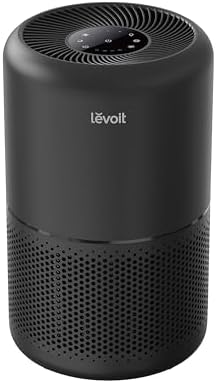
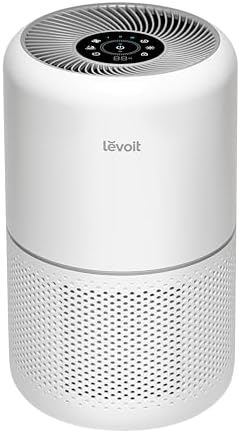
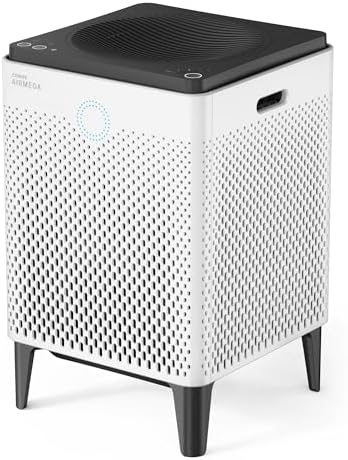
These options come from our affiliate table. Check the listing for the current CADR, filter type and replacement cost.



Privacy: What the App Collects
Apps collect usage data, device identifiers and sometimes location. Read the privacy policy and permissions. Disable optional data sharing and marketing, and use the minimum permissions needed. If you cannot accept the terms, choose a unit that works without the app.
When the Wi-Fi or App Fails
Check that the purifier still works with its physical controls if the Wi-Fi drops or the app is discontinued. Some units lose features, and a few lose basic control. Prefer models where core functions do not depend on the cloud.
Voice Assistants and Smart Home Links
If you use a voice assistant or smart home hub, check compatibility before buying. Simple routines such as turning the purifier on when you leave can be useful, but they add complexity. Keep manual control as a backup.
Sensors and Auto Mode
Many connected units include particle sensors and an auto mode. Sensors are rough indicators and best for trends. Auto mode can be helpful if the low speed is quiet and the sensor does not overreact.
Cost and Value
Connected models cost more than similar non-smart ones. Ask whether you will use the features weekly. If not, spend the difference on a higher CADR or better filters.
Longevity and Support
Check how long the maker supports the app and the device, and whether firmware updates are provided. A purifier can last many years, while apps and cloud services may not.
What Wi-Fi Adds
Most connected purifiers offer remote on and off, speed and mode control, schedules, filter-life tracking and sometimes air quality readings in an app. Some also work with voice assistants. These features help if you want to start the purifier on the way home or keep it quiet at night without touching the unit.
None of them improves CADR or filter quality.
Setting Up Safely
Connect the purifier to your home Wi-Fi following the instructions, typically over a 2.4 GHz network. Use a strong router password, keep the router firmware updated and consider a separate guest or IoT network for connected devices. Use a unique password for the app account, and turn on two-factor authentication if it is offered.
| Step | Why |
|---|---|
| Use a strong router password | Protects the network |
| Update firmware | Fixes known issues |
| Use a guest or IoT network | Limits exposure |
| Use a unique app password | Reduces account risk |
A Worked Example: Setting Up a Bedroom Unit With a Schedule
You want your bedroom purifier to run on medium for an hour before bedtime, then drop to low until morning. In the app, set a schedule for 8 pm to medium and 9 pm to low, and set the display to turn off at night. Add a rule that boosts the speed for 30 minutes after you wake, to clear any dust from bedding. After a week, review how well it fits your routine and adjust. If you find you never open the app, you can still use the unit manually, which is a good sign that the physical controls matter.
| Time | Mode | Reason |
|---|---|---|
| 8 pm | Medium | Clear dust before sleep |
| 9 pm to 7 am | Low or sleep mode | Quiet overnight |
| 7 am | Medium for 30 minutes | Clear dust after bedding is disturbed |
Network Basics for Smart Devices
Most connected purifiers use a 2.4 GHz Wi-Fi band. If your router combines bands under one name, the setup may fail, so you may need to temporarily separate them or use the app’s instructions. Place the purifier within range of the router, or use a mesh node. Weak signal causes dropped connections and delayed commands.
Security Hygiene for Connected Appliances
Any connected device is a potential entry point to your network. Keep your router firmware updated, change default passwords and use WPA2 or WPA3 encryption. Consider putting smart appliances on a guest network so they cannot see your computers and phones. Remove devices you no longer use from your account and reset them before you sell or give them away.
Using Remote Control Sensibly
Remote control lets you start the purifier before you arrive or adjust it while away. It is not necessary to run the purifier when no one is home, but for pets or when you return to a smoky house, it can be handy. Do not rely on remote features for safety: if something looks wrong with the unit, unplug it.
Air Quality Readings in the App
Readouts can show spikes after cooking or when you open windows, helping you understand your home. Treat them as rough guides. Humidity, dust on the sensor and placement can skew values, and different brands report different scales. Use them to spot trends rather than decide whether air is safe.
Updating, Resetting and Selling
Install firmware updates when offered, since they fix bugs and sometimes improve features. Before selling or gifting a unit, factory-reset it and remove it from your app account. If the maker discontinues support, consider whether you will still be happy using it manually.
Alternatives to Wi-Fi
A simple unit with a timer and a remote control can cover many of the same needs without cloud services. Smart plugs can add scheduling to a basic purifier, though you should check that the purifier restores its settings after a power cycle and that the plug is rated for the load.
How to Choose
- Choose by CADR, filters and noise first
- Check whether physical controls work fully without Wi-Fi
- Review app permissions and privacy policy
- Check support length and firmware updates
- Decide which features you will use weekly
Do
- Match the unit’s rated coverage to your room first
- Run it consistently, not only when the air feels bad
- Leave space around the unit for airflow
- Replace filters on the maker’s schedule
Don’t
- Do not buy on looks or price alone
- Do not block the intake or exhaust
- Do not skip filter changes
- Do not expect a purifier to fix every source of pollution
Honest Limits
- This guide uses manufacturer information and public guidance from the EPA and AHAM, not our own lab tests.
- Features and room ratings change between model years, so confirm on the listing before you buy.
- A purifier is not a medical device and does not replace medical advice or treatment.
Who Should Skip This
Skip Wi-Fi models if you will not use the features or cannot accept the app’s privacy terms.
Skip ionizer and ozone modes; the EPA advises against ozone-generating devices.
When to See a Professional
If you have asthma or allergies, do not rely on app readings to manage symptoms. Follow your doctor’s plan.
If the unit overheats, smells of burning or behaves strangely, unplug it and contact the maker.
Frequently Asked Questions
Do Wi-Fi air purifiers clean better?
No. Cleaning depends on CADR, filters and placement. Wi-Fi adds control and convenience.
Do I need Wi-Fi for a purifier to work?
Usually not. Most work with physical controls, but check before buying.
Are Wi-Fi purifiers a security risk?
Any connected device carries some risk. Use strong passwords, update firmware and consider a guest network.
What data does the app collect?
Usage data, device identifiers and sometimes location. Review permissions and disable optional sharing.
What happens if the app is discontinued?
Some features may stop working. Choose models with full physical controls.
Do I need 2.4 GHz Wi-Fi?
Many connected purifiers use 2.4 GHz. Check the setup instructions.
Are the air quality readings accurate?
They are rough indicators useful for trends. Do not treat them as lab results.
Can I use a smart plug instead?
Sometimes, but check that the purifier resumes operation after power cycles and that the plug can handle the load.
Is the premium worth it?
Only if you will use scheduling, remote control or reminders regularly.
Are ionizer modes safe?
Some produce ozone, which the EPA advises against.
Bottom Line
A Wi-Fi air purifier adds convenience, not cleaner air. It is worth the premium only if you will use schedules, remote control or alerts.
Set it up securely and make sure it works without the cloud.
Related reading: wifi,fan,lw
Sources: EPA, Guide to Air Cleaners in the Home; AHAM Verifide.