Last updated:
Disclosure: As an Amazon Associate we earn from qualifying purchases. This does not change what we recommend. See our affiliate disclaimer.
Seeing an error code or a filter-change light right after you cleaned your air purifier is frustrating, but it is usually fixable. The most common causes are a filter or cover that is not seated properly, a filter timer that has not been reset, a sensor that was disturbed or dusty, or moisture left inside. A methodical check typically clears the alert.
This guide explains the usual causes and the safe order of checks. We have not tested these products ourselves, so follow your manual, since error codes differ between models. If you see a burning smell, sparks or a persistent fault after the checks, stop using the unit and contact the manufacturer.
Common causes
- Cover or filter not seated
- Filter timer not reset
- Sensor disturbed or dusty
Safe steps
- Unplug, reseat and restart
- Reset the filter timer as the manual says
- Let the unit dry fully
Key Takeaways
- Power cycle after making sure the unit is dry
- Check that the cover and filters are seated in the right direction
- Reset the filter timer only after cleaning or replacing the filter
- Look up the error code and contact support if it persists
Troubleshooting Checklist
Unplug and let the unit dry. Reseat the filters. Close the cover. Reset the timer. Power on. Wait a few minutes. Check the code. Look it up. Contact support if needed. Keep notes of what you did.
Preventing Errors After Future Cleans
Take photos before you clean. Keep the manual handy. Do not wet the housing or sensors. Reseat the filters carefully. Reset the timer only when you replace the filter. Keep a log. These steps prevent most post-cleaning errors.
When It Is Not Your Cleaning
Sometimes the error is coincidental: a fan nearing the end of its life, a power surge or a firmware glitch. If the error appears again after you have checked everything and the unit is only a few years old, contact support. Do not keep using the unit if it shows signs of damage.
Warranty and Repair Options
Check the warranty terms. If the unit is covered, ask about repair or replacement. If it is out of warranty, compare the cost of repair with a new unit. Be cautious of unauthorized repairs that may void the warranty or pose a safety risk.
Understanding Common Error Types
Error codes usually fall into a few groups. Filter errors relate to the timer or the presence of a filter. Fan errors relate to the motor or a blockage. Sensor errors relate to the particle or gas sensors. Communication errors relate to the display or to Wi-Fi. Knowing the group tells you which part of the unit to check first and helps you describe the problem to support.
What Not to Do When an Error Appears
Do not open the sealed control section, spray cleaner into the vents, bridge a switch or run the unit with the cover off. Do not repeatedly reset the unit in the hope that the fault goes away, since a real fault will return. Avoid using third-party firmware or unofficial apps that claim to unlock a unit. Stick to the steps in the manual.
Checking the Outlet and Power Supply
A weak or loose outlet, a damaged cord or a faulty adapter can cause intermittent errors. Plug the unit into a different outlet, check the cord for damage and avoid power strips if the manual advises against them. If the unit works in another outlet, the original outlet may need checking by a qualified electrician.
After a Firmware or App Update
If your unit has Wi-Fi and the error appeared after an update, check the app for release notes, restart the unit and the router and make sure the app is current. Some updates reset the filter timer or the schedule. If problems continue, contact support and mention the update.
Keeping a Reference Sheet for Your Unit
Write down the model number, the filter model numbers, the filter-reset sequence and the most common codes. Keep it with the manual or in a note on your phone. The next time an alert appears you will know what to try, and you will have the details ready for support if needed.
Air Purifiers With Clear Indicators
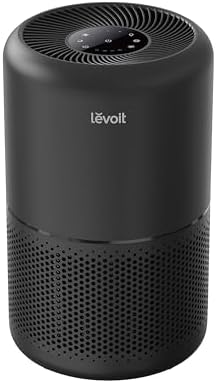
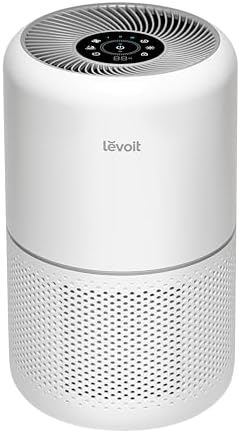
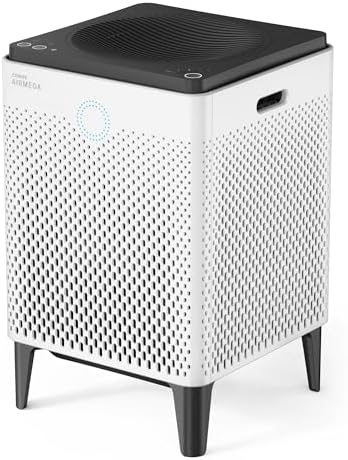
If you are replacing a unit, look for clear filter indicators, a simple reset and good support documentation. These picks come from the Hostinger affiliate plugin. Specs change by model year, so confirm features and replacement costs on the product page.



Step 1: Power Cycle the Unit
Unplug the unit, wait about a minute and plug it in again. A brief power cycle clears many temporary faults. Before doing so, make sure the unit is dry, especially if you washed a pre-filter or wiped the housing. Do not run a damp unit.
Step 2: Check That Everything Is Seated
Many units will not run, or show an error, unless the cover and filters are fully in place. Open the cover, check the filters are in the correct order and direction, reseat them and close the cover until it clicks. If your unit has a safety switch, make sure no dust or debris blocks it.
Step 3: Reset the Filter Timer
If the alert is a filter-change reminder, the timer may need to be reset after cleaning or replacing the filter. The method varies: some units use a button held for a few seconds, others use a combination of buttons. Check the manual for your model. Note that resetting the timer for a filter you did not replace only hides the reminder.
Step 4: Check the Sensor
Particle and air quality sensors can be disturbed by dust or moisture. If the manual describes cleaning the sensor, use a dry cotton swab or a soft brush on the opening, without liquid. Let the unit run for several minutes to stabilize. If the readings stay odd, contact the manufacturer.
Step 5: Look Up the Error Code
Look up the code in the manual or the manufacturer support page. Codes may refer to fan faults, sensor issues or filter problems. Write down the code and what you did before it appeared. If the manual does not list it, contact support with the model number and the code.
Why Filters Must Be Detected
Some units use a magnetic sensor or a switch to detect that a filter is in place. If the filter is rotated, upside down or tilted, the sensor may not register it and the unit shows an error. Check the manual diagram and match the orientation, then close the cover. Do not force the filter.
Moisture and Error Codes
If a washable pre-filter or the housing was damp when you reassembled the unit, moisture may affect sensors or contacts. Unplug the unit, remove the filter, let everything dry for a day and then try again. Do not use heat to hurry it.
When the Fan Cannot Spin Freely
A fan fault code can appear if something blocks the fan, such as a stray piece of debris or a part touching it. With the unit unplugged, look into the intake with a torch and remove any obvious debris without inserting tools into the fan. If you cannot see an obstruction, contact the manufacturer.
Wi-Fi and App Errors
Smart units may show an app error or lose connection after a power cycle. Check that the unit is on the home network, restart the router if needed and open the app. Firmware updates may reset settings. This is different from a fault on the unit itself, so check the app first if the unit runs normally.
Contacting Support Effectively
Share the model number, the purchase date, the error code, what you cleaned and the steps you tried. Photos of the display and the filter compartment help. Ask whether the issue is covered under warranty and whether a part or a replacement is needed.
How to Choose
- Look for clear, documented error codes
- Check how the filter timer is reset
- Compare warranty terms and support options
- Check replacement filter costs
Do
- Match the unit’s rated coverage to your room first
- Run it consistently, not only when the air feels bad
- Leave space around the unit for airflow
- Replace filters on the maker’s schedule
Don’t
- Do not buy on looks or price alone
- Do not block the intake or exhaust
- Do not skip filter changes
- Do not expect a purifier to fix every source of pollution
Honest Limits
- This guide uses manufacturer information and public guidance from the EPA and AHAM, not our own lab tests.
- Features and room ratings change between model years, so confirm on the listing before you buy.
- A purifier is not a medical device and does not replace medical advice or treatment.
Who Should Skip This
When to See a Professional
Frequently Asked Questions
Why does my air purifier show an error after cleaning?
Often a filter or cover is not seated, the filter timer needs a reset, a sensor was disturbed or the unit is damp.
How do I reset the filter light?
The method depends on the model. Check the manual for the button sequence.
Can I clean the sensor?
Only as the manual describes, usually with a dry swab. Do not use liquids.
What if the error stays?
Note the code and contact the manufacturer.
Bottom Line
An error after cleaning is usually due to a filter or cover not seated, a filter timer that needs a reset, a disturbed sensor or leftover moisture. Power cycle, reseat parts, reset the timer as the manual says and check the sensor gently. If the error stays, note the code and contact the manufacturer.
Related reading: sens,fan,bed
Sources: EPA, Guide to Air Cleaners in the Home; AHAM Verifide.