
Last updated:
Disclosure: As an Amazon Associate we earn from qualifying purchases. This does not change what we recommend. See our affiliate disclaimer.
If an air purifier will not turn off, the cause is often a lock, a schedule, an app or voice assistant command, a stuck button, a remote conflict or a control board fault. Try the power button for the right hold time, unlock controls, clear schedules, check the app and remote, and test the unit’s own button. If it still will not switch off, simply unplug it from the wall, which is always a safe way to stop a unit. Then contact support, and do not open the casing.
We have not tested these products ourselves, so follow your manual. Nothing here is medical advice or electrical advice.
Try
- Hold the power button
- Unlock controls
- Clear schedules and app commands
If nothing works
- Unplug it
- Do not open the casing
- Contact support
Key Takeaways
- Check locks, schedules and apps
- Unplug if it will not stop
- Do not open the casing
- Contact support
A Step-by-Step Fix
First, try the unit’s own power button, holding it for a few seconds if the manual says so. Look for a lock icon and unlock the controls. Open the app or voice assistant and check for schedules, routines or automations that restart the unit, and disable them. Remove batteries from the remote to rule it out. Unplug the unit for a minute and plug it in again, then try to turn it off. If it restarts by itself, check smart plugs or timers between the wall and the unit. Clean the control panel gently. If the unit still will not turn off, leave it unplugged and contact support with a video and your model number. Do not use a unit that smells hot or behaves erratically.
Why Unplugging Is Safe
Unplugging removes power. Pull by the plug, not the cord.
Sleep and Auto Modes
Some modes keep lights on or run at low speed. Check that the unit is truly on.
Remote Issues
A stuck remote button can send commands. Replace batteries.
Smart Home Conflicts
Check routines in voice assistants.
Power Surges
Surges can glitch electronics. Consider surge protection.
Replacing the Unit
If controls are unreliable and out of warranty, consider replacing it.
Safety Notes for Units That Will Not Stop
A unit that will not turn off is usually a control issue, not a hazard, but treat any heat, burning smell, smoke or buzzing seriously. Unplug immediately in those cases and keep it unplugged. If you cannot reach the plug safely, switch off the circuit at the breaker panel. Do not open the casing. Do not use extension cords or adapters that are not rated. Keep children and pets away from damaged units. If you rely on the purifier for health reasons, plan a temporary alternative such as ventilation and cleaning while support resolves the issue. Keep records of your contact with the manufacturer and the model and serial number.
Warranty and Return Windows
Contact support early to stay within coverage.
Control Panel Care
Do not spray liquids. Wipe gently with a dry cloth.
Voice Assistants
Check linked accounts and routines for commands.
Using Timers on Purpose
Timers can be useful when set correctly.
Choosing Simple Controls
Units with clear buttons are easier to manage.
Smart Plug Settings
Check schedules on smart plugs.
Documentation
Keep manuals and receipts.
Why a Purifier Keeps Running
A purifier that will not switch off is usually in a mode that keeps it running: a timer or schedule that restarts it, auto mode responding to a sensor that reads dirty, a child lock that disables the power button, a stuck or dirty button, a remote or app sending a conflicting command, or a sleep mode that only dims the lights while the fan continues. A genuine control fault is possible but is the last thing to suspect.
Unplugging the unit always works as a last resort; the aim is to find why the button does not.
Step-by-Step Checks
- Look for a lock icon and hold the lock button to release the child lock
- Hold the power button for several seconds; some units need a long press
- Clear any timer or schedule in the menu or app
- Switch auto mode to manual and then power off
- Check whether sleep mode is on; the fan runs at its lowest speed with lights off
- Remove the remote’s batteries to rule out a stuck button on the remote
- Unplug for a minute and retry
Most units respond to one of the first three.
Sensors and Auto Mode
In auto mode a dirty sensor can read poor air permanently and keep the fan running at speed. Clean the sensor opening with a dry cotton swab, allow half an hour, and test. If the unit powers off normally in manual mode but not in auto, the sensor is the cause and the manual fix is to use manual speeds or clean the sensor regularly.
Buttons and Panels
A sticky power button from a spill or a touch panel confused by dust or moisture can register continuous presses. Wipe the panel with a dry cloth, clean around physical buttons with a barely damp cloth while unplugged, and let everything dry. If the button physically stays depressed, the switch has failed and the manufacturer should be contacted.
Apps and Schedules
Smart units can be restarted by a schedule, an automation, or a voice assistant routine without you noticing. Check the app for schedules and routines, and check any smart home platform the unit is linked to. Disable them and test the power button again.
When It Is a Fault
If the unit ignores the power button in every mode, after a power cycle, with no timers or schedules, and with the panel clean, the control board may have failed. Using the unit via a smart plug to switch it off is a workable interim solution. For any heat, smell, or odd noise alongside the control issue, stop using it and contact the manufacturer.
Final Word
A purifier that will not switch off is obeying a lock, a timer, a schedule, auto mode, or a sleep mode, or has a stuck button. Clear each in turn and power-cycle; a unit that ignores every power command after that has a board fault and can be controlled by a smart plug meanwhile.
Air Purifiers With Reliable Controls
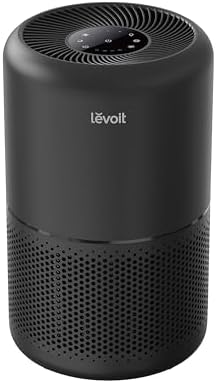
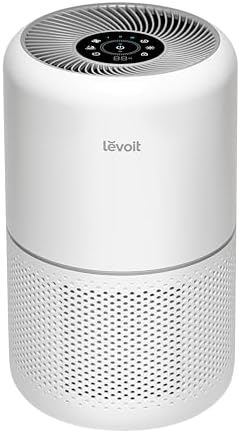
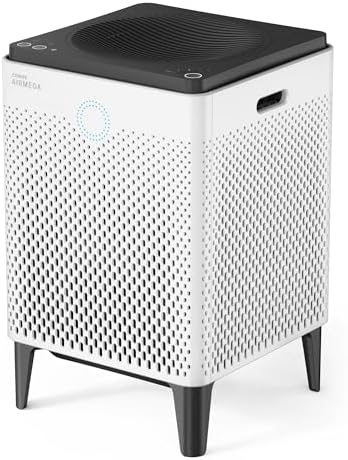
These picks come from the Hostinger affiliate plugin. Specs change by model year, so confirm filter type, CADR, noise and replacement filter costs on the product page.



Power Button and Child Lock
Some units need a long press to power off or have a lock that ignores buttons. Check the manual for the lock sequence.
Schedules and Timers
Schedules in the unit or app may turn it back on. Review and clear them.
Apps, Remotes and Voice Assistants
A remote, app or voice routine may be sending commands. Disconnect or check them.
Stuck Buttons and Panels
Dirt or moisture can stick buttons. Clean gently while unplugged.
Control Board Faults
If nothing works, the control board may be faulty. Unplug and contact support.
Smart Plugs
A smart plug may restart the unit. Check settings.
Auto Restart After Power Cuts
Some units restart automatically. Check settings.
Firmware
Update apps and firmware.
Resetting
Power cycle the unit.
Warranty
Contact support with a video.
How to Choose
- Clear physical controls
- Reliable app and remote
- Good support
- Simple modes
Do
- Match the unit’s rated coverage to your room first
- Run it consistently, not only when the air feels bad
- Leave space around the unit for airflow
- Replace filters on the maker’s schedule
Don’t
- Do not buy on looks or price alone
- Do not block the intake or exhaust
- Do not skip filter changes
- Do not expect a purifier to fix every source of pollution
Honest Limits
- This guide uses manufacturer information and public guidance from the EPA and AHAM, not our own lab tests.
- Features and room ratings change between model years, so confirm on the listing before you buy.
- A purifier is not a medical device and does not replace medical advice or treatment.
Who Should Skip This
When to See a Professional
Frequently Asked Questions
Is it safe to unplug it?
Yes.
Why will it not turn off?
Locks, schedules or faults.
Can an app cause it?
Yes.
Should I open it?
No.
Bottom Line
If the unit will not turn off, check locks, schedules and apps, then unplug it and contact support. Do not open the casing.
Related reading: sens,fan,bed
Sources: EPA, Guide to Air Cleaners in the Home; AHAM Verifide.